With the RO Payments - HikaShop addon you can add a HikaShop payment method for each payment method you want to offer, for example iDEAL, credit card and PayPal, each with its own profile.
Install the addon as described in Installation RO Payments, and create a profile first.
Add a payment method
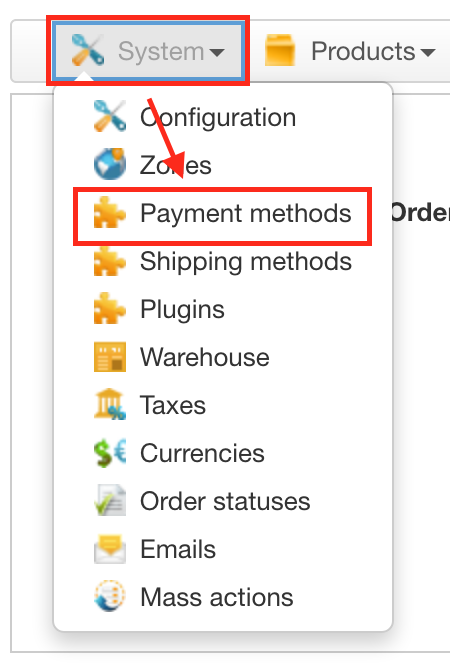
- Go to Components -> HikaShop -> System -> Payment methods
- Click New
- Choose RO Payments - HikaShop
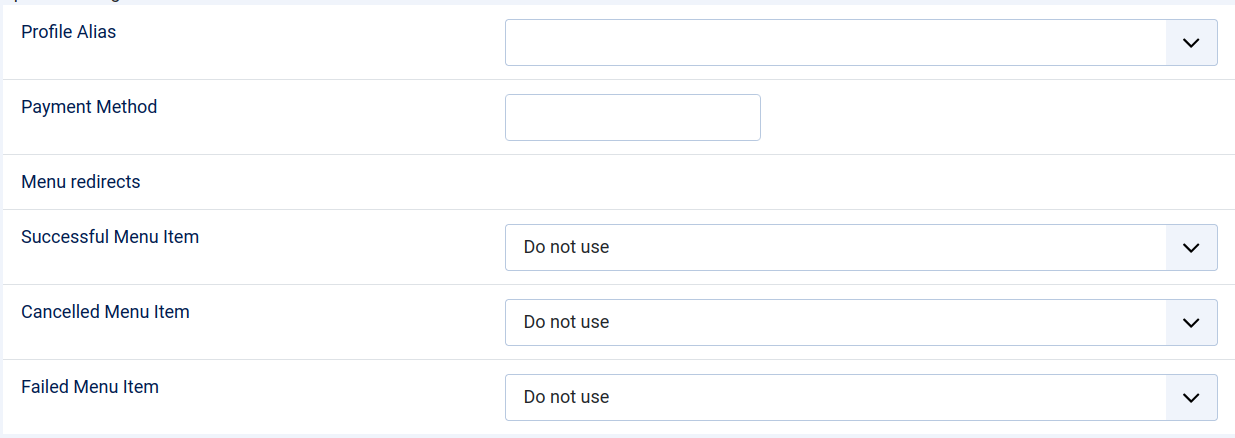
- Fill in the name, image and other settings of HikaShop as for any payment method
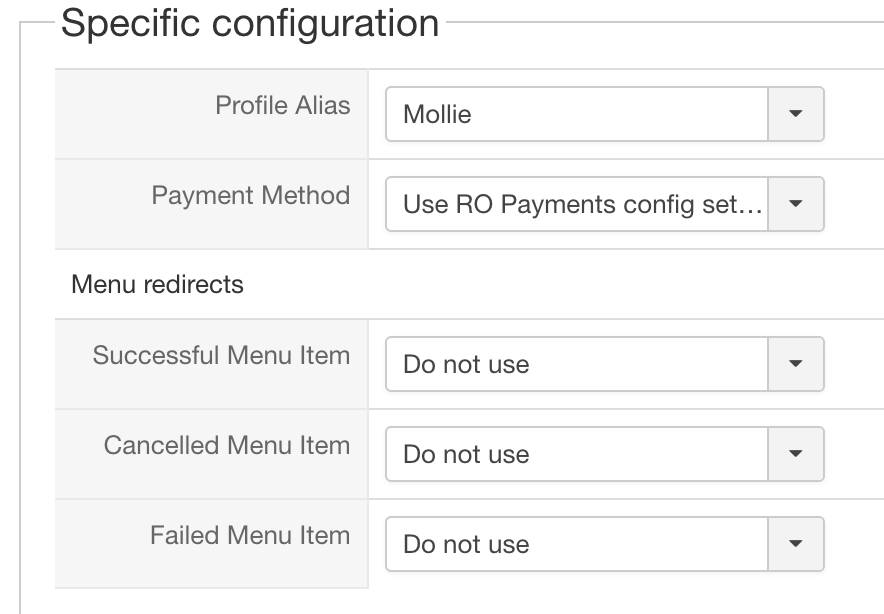
- Under Specific configuration:
- Profile Alias: the profile to pay with
- Payment Method: the payment method of the profile, for example iDEAL. Save the payment method once after choosing the profile, to load the payment methods of that profile. Choose Use payment provider selection screen to let the customer choose at the payment provider.
- Menu redirects: optional, a menu item to send the customer to after a successful,
cancelled or failed payment instead of the HikaShop page. This does not work with guest
checkout, because HikaShop cannot check the order against the user.
- Publish the payment method and click Save & Close
Repeat these steps for every payment method you want to offer. The payment methods of the profile are listed on its Payment Methods tab, see Configure an RO Payments profile.
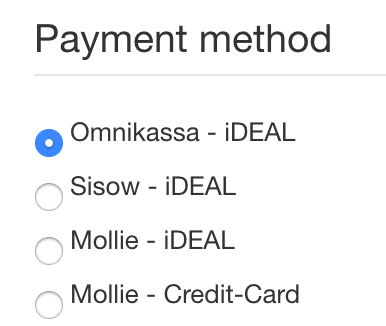
At checkout the customer sees the payment methods:
Order statuses
RO Payments gives the order the HikaShop order status of the status chosen on the Status tab
of the profile. The statuses RO Payments installs have the codes of VirtueMart, so for HikaShop
create statuses with the HikaShop order status as Extension Payment Status, for example
confirmed for a successful payment and cancelled for a cancelled one, and choose them in the
profile. See Manage order statuses.
Only a successful or a cancelled payment changes the HikaShop order; with any other result the order keeps its status.
The message after paying
When the customer comes back, HikaShop shows the result message of RO Payments for the result of the payment.