Each form has its own RO Payments settings, so every form can use its own profile, currency and emails. Open the form and go to Form Properties -> RO Payments.
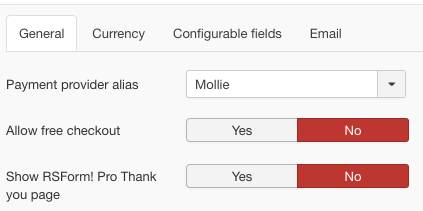
The settings are on four tabs.
General
| Field | What it does |
|---|---|
| Payment provider alias | The profile that handles the payments of this form. When the form has an RO Payments Profile field, the visitor chooses the profile and this setting is used when no profile is chosen. |
| Currency Code | The three-letter currency of the payments, for example EUR. Only needed when the payment provider supports several currencies, so forms can be paid in different currencies. |
| Allow free checkout | Allows sending the form with a total of 0. Otherwise the visitor gets an error that the total is 0. |
| Show RO Payments message | Yes shows the result message of RO Payments for the result of the payment; No shows the Thank You message of RSForm! Pro, which is the same for every result. Show Thank You Message of the form must be on to see either message. |
| Always Update Submission | Yes always updates the submission with the payment result. By default only a submission with the status Pending is updated. |
Price
| Field | What it does |
|---|---|
| Thousands separator | The character between thousands, for example the period in 1.000 |
| Decimal separator | The character before the decimals, a comma by default |
| Number of decimals | The number of decimals of the prices, 2 by default |
| Product Price Mask | How a product is shown, with the placeholders {product}, {price} and {currency} |
| Amount Price Mask | How the subtotal of the products is shown |
| Total Price Mask | How the total is shown |
| Tax type | A Fixed rate or a Percent (%) added to the total |
| Tax value | The tax to add. With 21 and Percent, 21% is added; with Fixed rate, 21 is added. Leave it empty for no tax. |
Configurable fields
Which fields of the form hold the order number, the name and the email address of the customer. See RSForm! Pro configurable fields.
| Field | What it does |
|---|---|
| Defer user e-mail | Sends the user email after the payment is processed instead of when the form is sent |
| Defer admin email | The same for the admin email |
| Defer additional emails | The same for the additional emails |
| Send email in case of payment failure | Also sends the emails of RSForm! Pro when the payment was cancelled or failed, see Send emails in case of payment failure in RSForms |
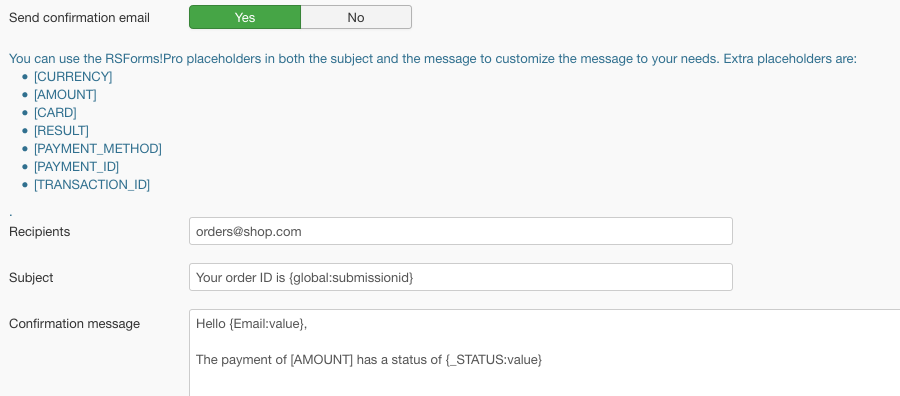
| Send confirmation email | Sends a confirmation email to the Recipients you enter, with the Subject and Confirmation message you write. Both can use the placeholders of the form and of the payment. |
When emails are not sent as you expect, see Emails are not being send in RSForm! Pro.