The description is sent to the payment provider with each payment. The customer sees it on the payment page and often on the bank statement, so make it easy to recognise, for example Order {ORDERNR} at Example Shop.
Set the description
Enter the Description on the Settings tab of the profile. Adyen, Mollie and Stripe need a description: RO Payments does not start the payment without one. Buckaroo and Ginger Payments use it as well. Rabo Smart Pay has no description field.
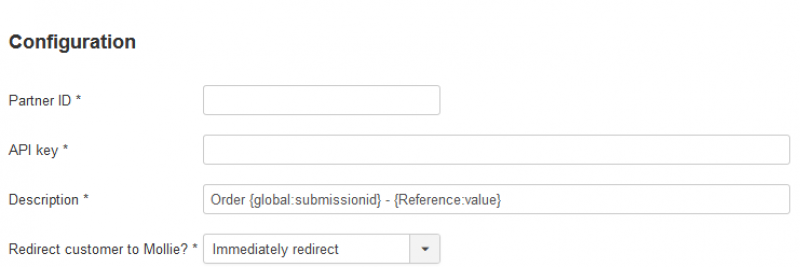
Some payment providers limit the length or the characters of the description; the & sign is not
allowed.
Placeholders
These placeholders are replaced for every extension:
{ORDERNR}- the order number{ORDERID}- the order ID{KLANTNR}- the user ID of the customer{AMOUNT}- the amount
Some extensions add their own placeholders:
- RSForm! Pro: every placeholder of the form, as shown in RSForm! Pro itself. For example
{global:submissionid}for the submission ID or{invoiceref:value}for the value of the field invoiceref.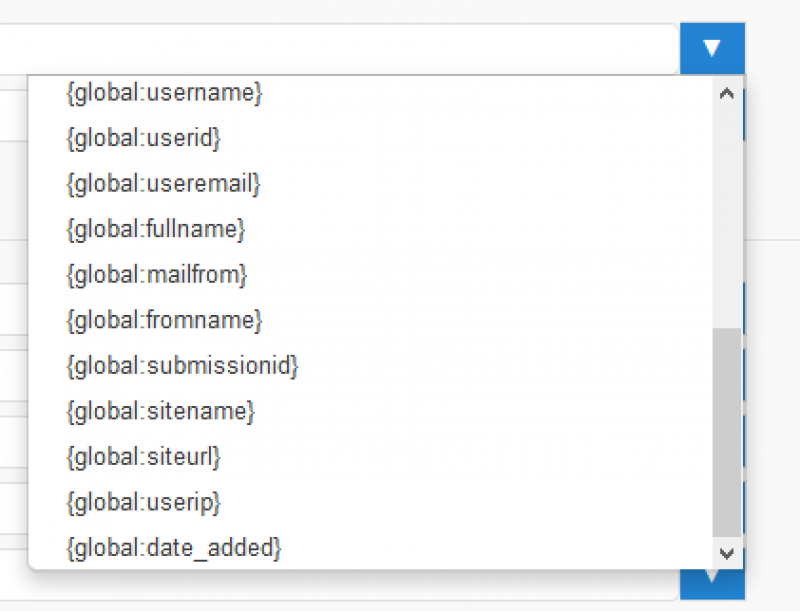
- RSEvents! Pro:
{eventName}, the name of the event. - Event Booking:
{eventTitle},{numberRegistrants},{ticketCode},{registrationCode}and more details of the registration. - JGive: the details of the campaign, such as
{title}.
Adyen sends the description as you enter it, without replacing the placeholders.
The same placeholders work in the result messages.