A chain runs several import and export templates one after the other, without anyone having to start the next one. Typical uses:
- import categories, then products, then product images, in that order;
- export the products from one shop and import them into another in one go;
- refresh a set of feeds every night from a cron job;
- export to another system, wait while that system processes the file, then import the file it writes back.
Each step of a chain is an ordinary RO CSVI template. The chain only decides the order of the steps and, when you want, passes the rows of an export straight to a later import. Every step still runs with its own template's settings and writes its own log, just as when you run the template on its own.
Creating a chain
- Go to Components -> RO CSVI -> Chains and click New.
- Fill in the Chain details:
- Name: a name to recognise the chain by.
- Alias: used to start the chain from the command line with
--chain_alias. Lowercase letters, numbers, hyphens and underscores only. Left empty, it is made from the name. - Enabled: a chain that isn't enabled can't be started from the command line.
- Enable frontend/cron and Secret key: needed to start the chain from the command line or a cron job, see Running a chain from the command line or a cron job.
- Notes and Tags: for your own reference. The tags can be used to filter the chains list.
- Click Save. Steps can only be added to a saved chain.
Adding steps
Below the chain details, pick a template in Select a template... and click Add step. The list can be searched by typing. Add as many steps as you need; the same template can be added more than once.
Each step shows:
- whether it is an IMPORT or an EXPORT, and the template's name. The name opens the template in a new tab, so you can check or change its settings.
- where the step writes to (an export), or where it gets its data (an import), see Where an import step gets its data.
- a problem with that source or destination that would stop the chain from running, see Checks before a run.
Changes to the steps are saved straight away; there is no need to click Save for them.
Wait steps
A wait step runs no template: the chain waits a number of minutes before it starts the next step. Use it when another system needs time between two steps, for example to process the file an export sent it and to write the file a later import reads.
Click Add wait to add one at the end of the chain, then set Minutes. A new wait step starts at 0, which doesn't wait at all. A wait step is moved and removed like any other step.
While the chain waits, the progress panel shows Waiting with the time the chain carries on, and the chains list shows Waiting until that time. The wait counts from the moment the step starts. A run that is paused during a wait and resumed after its time has passed carries on straight away.
Changing the order
The steps run from top to bottom. To change the order, drag a step by its handle, or select the handle and use the up and down arrow keys. Click x on a step to remove it from the chain. The template itself is not changed or removed.
Where an import step gets its data
Every import step chooses where its data comes from:
- Its own source: the file, URL, FTP server or database set in the import's template, the same as when you run the template on its own. The step shows which, for example Its own source (Load from server). This is how a new import step starts.
- The rows of an export step earlier in the chain: the import reads exactly what that export produced in this run, without a file in between.
The choice is made with Data from on the import step. It lists Its own source and every export step above the import, by number and name, for example 3. Products export. Any of those exports can be chosen, not only the one directly above. An import step with no export above it has nothing to choose from, so it shows only Its own source.
Each import step chooses for itself. In one chain, one import can read its own file while the next takes the rows of an export, and several imports can take the rows of the same export.
Passing rows from an export to a later import
When an import step's Data from is an export step, the export step shows Passes its rows to step N, or several step numbers when more than one import takes its rows.
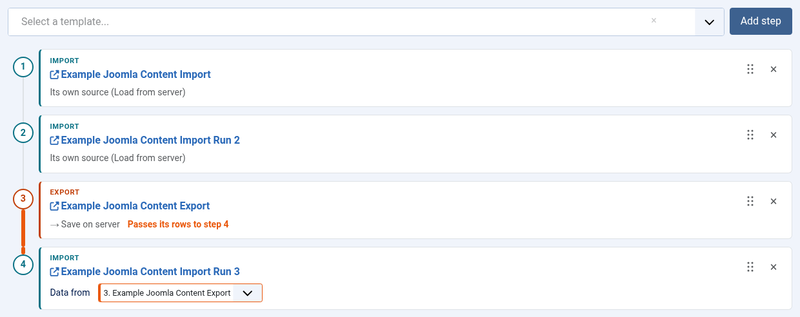
The rows go straight from the export to the import, through a temporary table that exists only for that run. Nothing is saved in either template: run on its own, the import still reads from its own source.
Each column of the export is matched to the import field with the same name. Between the shop components RO CSVI knows the matching field names itself, for example VirtueMart's product_sku and HikaShop's product_code. So set up the export's fields with the names the import expects, and use the same column headers.
Things to know:
- Only an export with the CSV format can pass its rows on.
- An export that passes its rows on doesn't need a destination of its own. When it has one, for example Save on server, it writes its file as well.
- When you move an import above the export it takes its rows from, it goes back to Its own source, because the export would no longer run before it. A message says so.
Checks before a run
A chain runs unattended, so RO CSVI checks it before it starts. When something is wrong, the chain is not started and the problems are listed. While you build the chain, the step list already points out an import without a usable source and an export that only downloads. The checks are:
| Problem | What to do |
|---|---|
| The chain has no steps. | Add at least one step. |
| The steps are connected in a loop. | Change the order or the Data from settings. |
| Template with ID N no longer exists. | Remove the step and add the right template. |
| Template is unpublished. | Publish the template, or remove the step. |
| An export's only destination is Download. | A download needs a browser waiting for the file. Set another destination on the template, such as Save on server, Save on FTP server, Email file, Export to another database or Export to Google Sheets, or let it pass its rows to a later step. |
| An export that passes its rows on isn't a CSV export. | Set its export format to CSV, or set the later step's Data from to Its own source. |
| An import's source is a text field. | A text field needs someone to paste the data, which can't happen in a chain. Use another source. |
| An import has no source configured. | Set its source in the template. |
| An import's file or folder doesn't exist. | Check the path in the template. When an export or a wait step comes earlier in the chain, this check is skipped, because the file may only exist once that export has run, or once another system has written it during the wait. |
An import template whose source is Load from your computer reads the file set for Load from server instead, the same as on the command line, because there is no browser to upload from.
Running the chain
Click Run in the chains list or on the edit page. How a run works, and what happens when the page is closed, is described in Running a chain.
Backing up and restoring chains
A chain backup is an XML file with the chains and the templates their steps use. Use it to keep a copy of your chains, or to move them to another site.
Making a backup
The quickest way is Backup chains in the toolbar of the chains list. It downloads a backup of the chains you selected, or of all chains when none are selected, together with the templates they use.
For more choice, go to Components -> RO CSVI -> Maintenance, choose RO CSVI and then Backup chains:
- Destination: Download, or Save on server in the folder set in Choose backup folder.
- The chains to back up. All are selected to start with.
The file name starts with csvi_chains_, followed by the site's domain and the date and time.
Not in the backup:
- a chain's Secret key, and the user names, passwords and tokens in the templates, the same as in a template backup. Fill them in again after a restore.
- the run history of a chain and when it last ran.
Restoring a backup
Click Restore chains in the toolbar of the chains list, or go to Components -> RO CSVI -> Maintenance, choose RO CSVI and then Restore chains:
- Select restore file on server: the full path of a backup file on the server, or
- Select restore file on computer: a backup file to upload.
- Overwrite existing chains and templates: a chain or template in the backup with the same alias as one on the site replaces it when set to Yes. When set to No, it is skipped and the log says so.
- Use existing rules: for the templates in the backup, use a rule on the site with the same name instead of adding the rule again.
The templates in the backup are restored first, then the chains. The log lists every restored chain and template, with a link to edit it.
A step refers to its template by the template's alias, so on another site it finds the template with the same alias. When the site has no such template, the step is restored without one and the log names the missing templates. Running the chain then stops at the check Template with ID 0 no longer exists: restore the template, or remove the step and add the right template.
A chain backup can also be restored with Restore templates. That restores only the templates in it.