A product variant is one combination of a product's attributes: the shirt in cotton and size L, the same shirt in wool and size M. With advanced stock management, Phoca Cart lets each combination have its own stock, price, SKU, EAN and image. The Advanced Stock operation of RO CSVI imports and exports these combinations, so you can:
- add all the variants of a new product from one file, including attributes and options that don't exist yet;
- update the stock and prices of every variant from a feed from your supplier or warehouse;
- give each variant its own image, from your server or from a URL;
- delete variants you no longer sell;
- export the variants to a spreadsheet, change them and import them again.
How Phoca Cart stores variants
A product has attributes (Material, Size), and each attribute has options (Nylon, Cotton, Wool; L, M). A combination is one option of each attribute: Material Nylon with Size L. Phoca Cart keeps a row for each combination with its stock, price, SKU, EAN and image, and finds that row by the product and the options it is made of.
What Phoca Cart does with the combinations depends on the product's Stock Calculation, on the Stock Options tab of the product:
| Stock Calculation | What the combinations do |
|---|---|
| Main Product | Nothing. The product's own stock is used. |
| Product Variations (Attributes) | Nothing. The stock of each attribute option is used. |
| Advanced Stock Management | Each combination has its own stock, SKU, EAN and image. Its price is ignored. |
| Advanced Stock And Price Management | As above, and each combination's price is used too. This price overrules customer group prices. |

RO CSVI imports the combinations whatever the Stock Calculation is, but the shop only uses them with one of the two advanced options. RO CSVI doesn't change the Stock Calculation, so set it on the product in Phoca Cart, or with a Phoca Cart product import.
Before you start
- The product exists and has a SKU. The import finds the product by its SKU. It doesn't create products; import those first with a product import.
- The Stock Calculation of the product is set to Advanced Stock Management or Advanced Stock And Price Management, see above.
- The attributes and options don't have to exist yet. When a row names an attribute or an option the product doesn't have, the import adds it, see Writing the attributes.
Creating the import template
-
Go to Components -> RO CSVI -> Templates and click New.
-
Under Operations, choose:
- Action: Import
- Component: Phoca Cart
- Operation: Advanced Stock

-
On the Source tab, choose where the file comes from, for example Upload file.
-
On the File tab, the options that matter most here are:
- Use file for configuration: set it to Yes to use the column headers of your file as the field names, as in the examples on this page. Set it to No to set the fields on the Fields tab instead.
- Overwrite existing data: with No, a row for a combination that already exists is skipped and only new combinations are added. Set it to Yes to update existing combinations.
- Skip new items: with Yes, the import only updates combinations that already exist and skips rows for new ones.
-
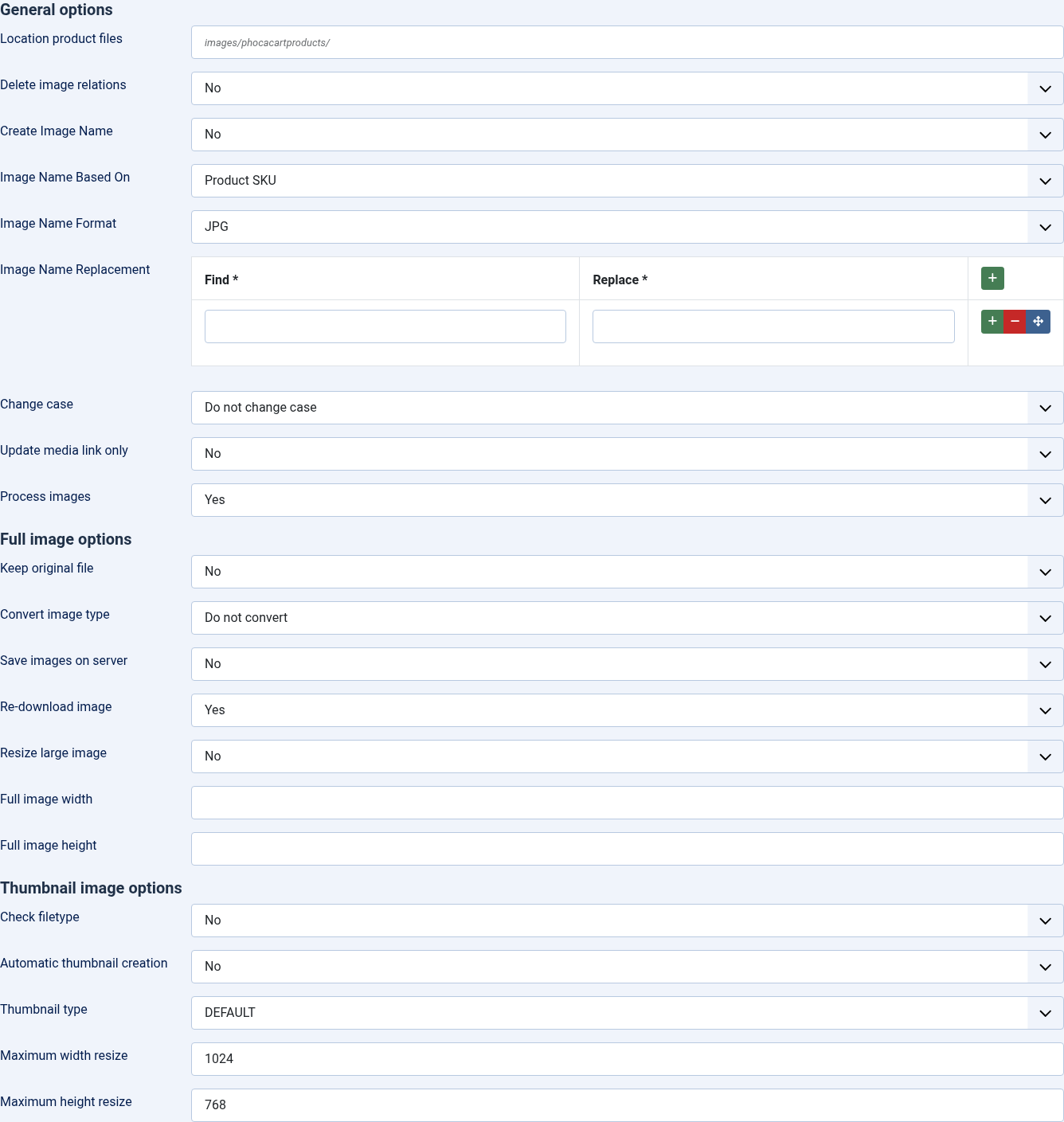
On the Image tab, set how combination images are handled, see Combination images.
-
On the Separators tab, check the Fields Separator (
~) and Nested Values Separator (#). They are used to write the attributes of a combination, see Writing the attributes.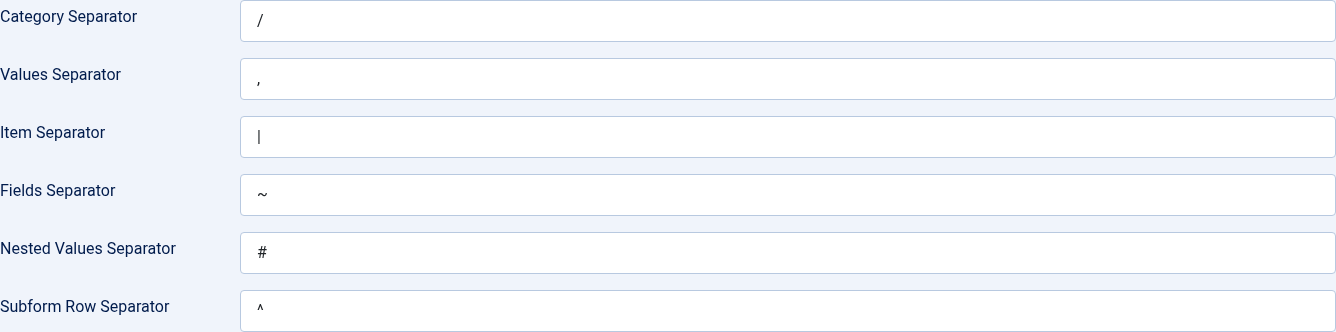
-
Click Save.
The import file
Each row of the file is one combination. This file adds four variants of the product with SKU
10001, each with its own SKU, price, stock and, for two of them, an image:
product_sku,sku,attributes,price,stock,image
10001,10001-NY-L,Material#Nylon~Size#L,20,5,https://example.com/images/shirt-nylon-l.jpg
10001,10001-NY-M,Material#Nylon~Size#M,21,6,
10001,10001-CO-L,Material#Cotton~Size#L,22,7,shirt-cotton-l.jpg
10001,10001-WO-L,Material#Wool~Size#L,30,3,
These are the fields you can use:
| Field | What it holds |
|---|---|
product_sku |
The SKU of the product the combination belongs to. Needed to add a combination. |
sku |
The SKU of the combination. |
attributes |
The attribute options of the combination, for example Material#Nylon~Size#L. |
attributes_raw |
The attribute options as Phoca Cart stores them, as written by an export. Use this or attributes. |
stock |
The number in stock. |
price |
The price of the combination. Phoca Cart only uses it with Advanced Stock And Price Management. A decimal comma is changed to a point. |
ean |
The EAN of the combination. |
image |
The image of the combination, see Combination images. |
stock_delete |
Y deletes the combination, see Deleting combinations. |
id |
The ID of an existing combination, as shown by an export. Only for updating; a row with an ID that doesn't exist is not imported. |
product_id |
The ID of the product, as an alternative to product_sku. |
skip, combine |
The general RO CSVI fields to leave a column out or to combine columns. |
A row needs at least a product_sku or a sku.
Only the columns in the file are changed, so a file with just sku and stock changes the stock
and leaves the price, EAN and image of the combinations as they are. A column that is in the file
but empty on a row is imported as empty, with one exception: an empty image keeps the image the
combination already has.
Writing the attributes
The attributes field lists one option for each attribute of the combination:
- the name of the attribute and the name of the option are separated by the Nested Values
Separator,
#by default:Material#Nylon; - the attributes are separated by the Fields Separator,
~by default:Material#Nylon~Size#L.
Things to know:
- The names are the Title of the attribute and of the option as they are in Phoca Cart, and the attribute is looked up on the product of the row.
- The order doesn't matter:
Size#L~Material#Nylonis the same combination asMaterial#Nylon~Size#L. - When an attribute or option doesn't exist yet, the import adds it to the product, published. A
new attribute gets the type List (Select). Change the type and other settings of new
attributes and options in Phoca Cart afterwards when you need to. Check the spelling in your
file:
CottonandCotonbecome two options. - When a title contains
#or~, choose other separators on the Separators tab.
attributes_raw holds the same information as Phoca Cart stores it, with the IDs of the
attributes and options, for example a:2:{i:1;a:1:{i:1;i:1;}i:2;a:1:{i:3;i:3;}}. An export
writes it, so a file that was exported, changed and imported again finds its combinations by their
IDs, also when attributes or options were renamed in the meantime. attributes_raw never adds
attributes or options. When a row has both, attributes_raw is used.
How a row finds its combination
For every row, the import looks for the combination in this order:
- by
id, when the file has it; - by the product and its attributes, from
product_skuwithattributesorattributes_raw; - by
sku. When the row also has aproduct_sku, only that product's combinations are searched.
When a combination is found, it is updated, or skipped when Overwrite existing data is No.
When none is found, a new combination is added. A new combination needs a product and its
attributes, so a row with only a sku can update a combination but never add one.
Because the combination is found by its attributes first, a row with a product_sku and
attributes can also give an existing combination a new SKU.
Common tasks
Adding the variants of a new product
Import the product first, with its SKU. Then import a file with a row for each variant:
product_sku,sku,attributes,price,stock
20001,20001-RED-S,Color#Red~Size#S,15,10
20001,20001-RED-M,Color#Red~Size#M,15,12
20001,20001-BLUE-S,Color#Blue~Size#S,15,8
20001,20001-BLUE-M,Color#Blue~Size#M,15,0
The attributes Color and Size and their options are added to the product when it doesn't have them yet. Set Overwrite existing data to Yes if you want to run the same file again later with changed values.
Updating stock and prices
When the combinations have SKUs, the SKU is all you need:
sku,stock,price
20001-RED-S,25,14.50
20001-BLUE-M,6,14.50
Set Overwrite existing data to Yes, and Skip new items to Yes so a SKU that isn't
found is reported instead of added. Without SKUs, use product_sku and attributes to point to
the combination.
Deleting combinations
Add a stock_delete column and set it to Y on the rows to delete:
sku,stock_delete
10001-WO-L,Y
The combination is found the same way as for an update, so product_sku and attributes work
too. Only the combination is deleted: the attribute options stay on the product. A row whose
combination doesn't exist is skipped with the message Combination ... not found, nothing to
delete.
Combination images
The image field gives a combination its own image. With advanced stock management, the product
page shows this image when a customer chooses the combination, and the product image when the
combination has none.
The image is stored in the same way as Phoca Cart's own product images: a file name relative to
Phoca Cart's product image folder, images/phocacartproducts unless you changed it in Phoca Cart.
On the Image tab of the template, Location product files can set another folder. The
examples below use the default.
What you can put in the image field
With Process images set to Yes, the default:
| Value in the file | What happens | Stored as |
|---|---|---|
shirt-cotton-l.jpg |
The file is taken from the image folder: images/phocacartproducts/shirt-cotton-l.jpg. |
shirt-cotton-l.jpg |
images/shirts/shirt-cotton-l.jpg |
The path is read from the root of your site. The file is copied into the image folder. | shirt-cotton-l.jpg |
https://example.com/img/shirt-nylon-l.jpg |
With Save images on server set to Yes, the file is downloaded into the image folder. With No, nothing is downloaded. | shirt-nylon-l.jpg |
With Process images set to No, the value is stored exactly as it is in the file and
nothing is checked, copied or downloaded. Use this for images that are already in Phoca Cart's
image folder, also in a subfolder: Education/shirt-cotton-l.jpg points to
images/phocacartproducts/Education/shirt-cotton-l.jpg, just as when you select the image in
Phoca Cart.
Things to know:
- Processed images always end up in the image folder itself, not in a subfolder. A path in the file is where the image is read from, not where it goes. To keep your images in subfolders, put them there yourself and import with Process images set to No.
- A path in a subfolder of the image folder is read from the root of your site when images are
processed. Write
images/phocacartproducts/Education/shirt.jpg, notEducation/shirt.jpg, or set Process images to No. - Images from a URL are not downloaded unless Save images on server is Yes. The combination then gets the file name, but the file isn't on your server and no image shows. Re-download image decides whether an image that was downloaded before is downloaded again.
- An empty image cell keeps the current image. The import can't remove the image of a combination; do that in Phoca Cart.
- WebP images can't be processed yet. With Process images set to Yes, a WebP image is stored without its file extension and doesn't show. Import WebP images with Process images set to No.
- Several combinations can share one image. With Re-download image set to No, an image from a URL is downloaded only once.
Thumbnails
The product page doesn't show the image itself but a thumbnail of it: the large thumbnail on the
product page and the medium one in category lists. Phoca Cart looks for them in a thumbs
folder next to the image, named phoca_thumb_l_ and phoca_thumb_m_ followed by the file name.
When they don't exist, no image shows.
Set Automatic thumbnail creation to Yes to have RO CSVI create the small, medium and large thumbnail of every imported image, in the sizes set in Phoca Cart's options. Things to know:
- The image must be smaller than Maximum width resize by Maximum height resize, 1024 by 768 by default. For a bigger image, no thumbnails are made and the log says so. Raise the maximums, or set Resize large image to Yes with a Full image width and Full image height to make the image smaller first.
- Thumbnails are only created for processed images. With Process images set to No, the thumbnails must already exist, as they do for images uploaded or selected in Phoca Cart.
Image options that apply
The Image tab is shared with the Phoca Cart product import. The Advanced Stock import uses these options:
- Location product files
- Change case
- Process images
- Convert image type, Save images on server, Re-download image, Resize large image, Full image width and Full image height
- Check filetype, Automatic thumbnail creation, Maximum width resize and Maximum height resize
- the Watermark options
- the Credentials options, for images behind a login
Several of these options only show after clicking Advanced in the toolbar of the template.
The other options on the tab, such as Delete image relations, Create Image Name and Update media link only, are for product images and have no effect here.
Exporting combinations
An export lists every combination with the fields you choose. Create a template with Action
Export, Component Phoca Cart and Operation Advanced Stock, and add the fields on the
Fields tab. Besides product_sku, attributes and attributes_raw, every field of the
combination can be exported: id, product_id, sku, ean, stock, price, image, and
also product_key, the key Phoca Cart finds the combination by.
"product_sku","sku","attributes","attributes_raw","price","stock","image"
"10001","10001-NY-L","Material#Nylon~Size#L","a:2:{i:1;a:1:{i:1;i:1;}i:2;a:1:{i:3;i:3;}}","20.0000","5","shirt-nylon-l.jpg"
"10001","10001-NY-M","Material#Nylon~Size#M","a:2:{i:1;a:1:{i:1;i:1;}i:2;a:1:{i:4;i:4;}}","21.0000","6",""
The attributes are written with the separators on the export template's Separators tab, so
the file can be imported again as it is. To change stock or prices in a spreadsheet: export,
change the values, and import the file with Overwrite existing data set to Yes.
Checking the result
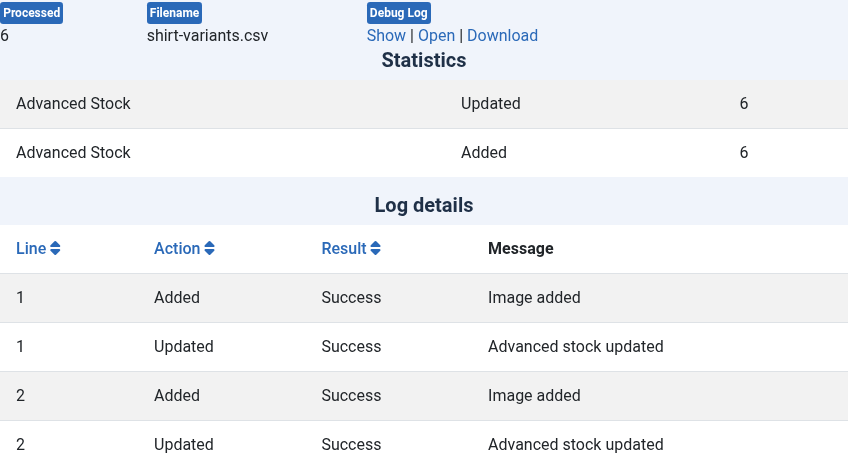
After the import, the log shows a line for every combination that was added, updated, deleted or skipped, and for every image. The Added count includes the images, so a file with six rows and six images can show six Updated and six Added.
In Phoca Cart, open the product, go to Stock Options and click Advanced Stock Options to see the combinations with their stock, price, SKU, EAN and image.
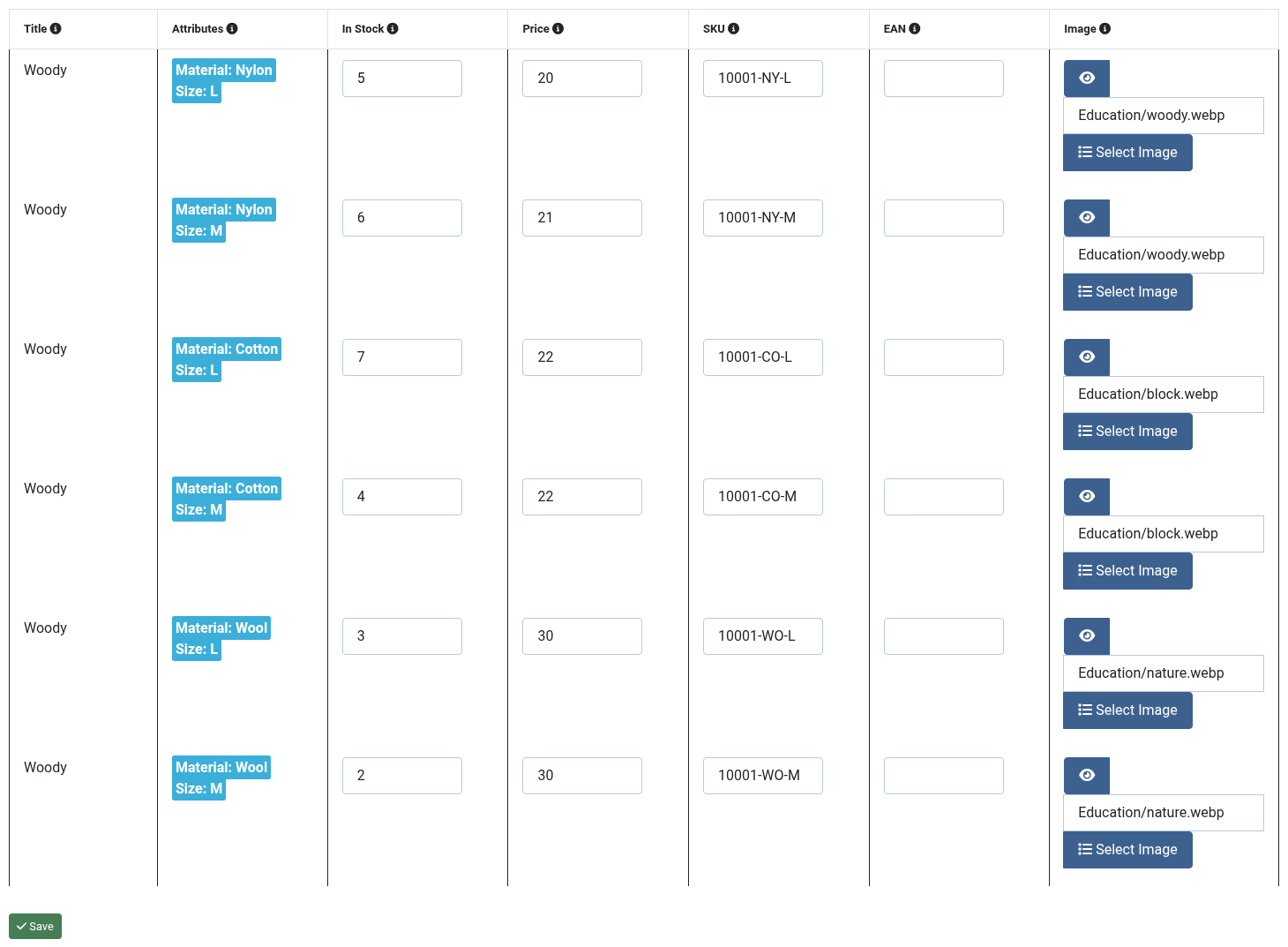
The window also lists combinations of just one attribute, such as Material Nylon on its own, because Phoca Cart lists every combination a customer could choose. Only import the combinations your shop sells.
Troubleshooting
| Message in the log | What to do |
|---|---|
| Combination ... not added because no product has been found for the product SKU | No product has the product_sku of the row. Check the SKU, or import the product first. |
| Combination ... not added because a new combination needs the attributes or attributes_raw field | The row has no attributes, and no existing combination was found by its sku. Add the attributes, or check the SKU. |
| Combination ... cannot be saved | The next log line gives the reason. When it says that no product or attribute options were found, the attributes_raw value can't be read: copy it from an export unchanged, or use attributes instead. |
| Combination ... not found, nothing to delete | The row to delete didn't match a combination. |
| Item ... exists, not updating because overwrite existing data is disabled | Set Overwrite existing data to Yes to update existing combinations. |
| Item ... not added because ignore non-existing items enabled | Skip new items is Yes, and the row didn't match an existing combination. |
| Row skipped. New records with an ID can only be imported ... | The id in the row doesn't exist. Leave the id column out to add new combinations. |
| Cannot create thumbnail because the thumbnail is bigger than the maximum size ... | See Thumbnails. |
| Cannot find or read file | The image file doesn't exist where the import looked for it. See What you can put in the image field. |
| The image is set but doesn't show in the shop | The product's Stock Calculation isn't one of the advanced options, the file wasn't downloaded (Save images on server is No), or the thumbnails don't exist. See Thumbnails. |
| The variants don't show in the shop | Set the product's Stock Calculation to Advanced Stock Management or Advanced Stock And Price Management. |