RO CSVI
Combine plugin
| RO CSVI
The combine plugin let's you combine multiple fields into a single field during import.
Source fields
The source fields are the fields that CSVI needs to combine. The names to fill in here come from the template fields page. The source fieldnames must be the names that are found in the Field name column on the template fields page. Unless the name in the Field name column is called combine. In that case you need to use the name found in the Your field column.
Target field
The result of the combination of the source fields will be put into this field. This must always be a name found in the Field name column.
Example
Combine with CSV import file
Say for example we have a CSV file with the following contents.
"product_sku";"product_name";"category_path";"subcategory1";"subcategory2"
"1001";"Product 1";""Shoes";"Women";"Flipflops"
"1002";"Product 2";""Shoes";"Men";"Runners"
"1003";"Product 3";""Shoes";"Kids";"Sneakers"
We need to combine sub categories into main category_path field then the below import explains on how to acheive this combine fields in import.
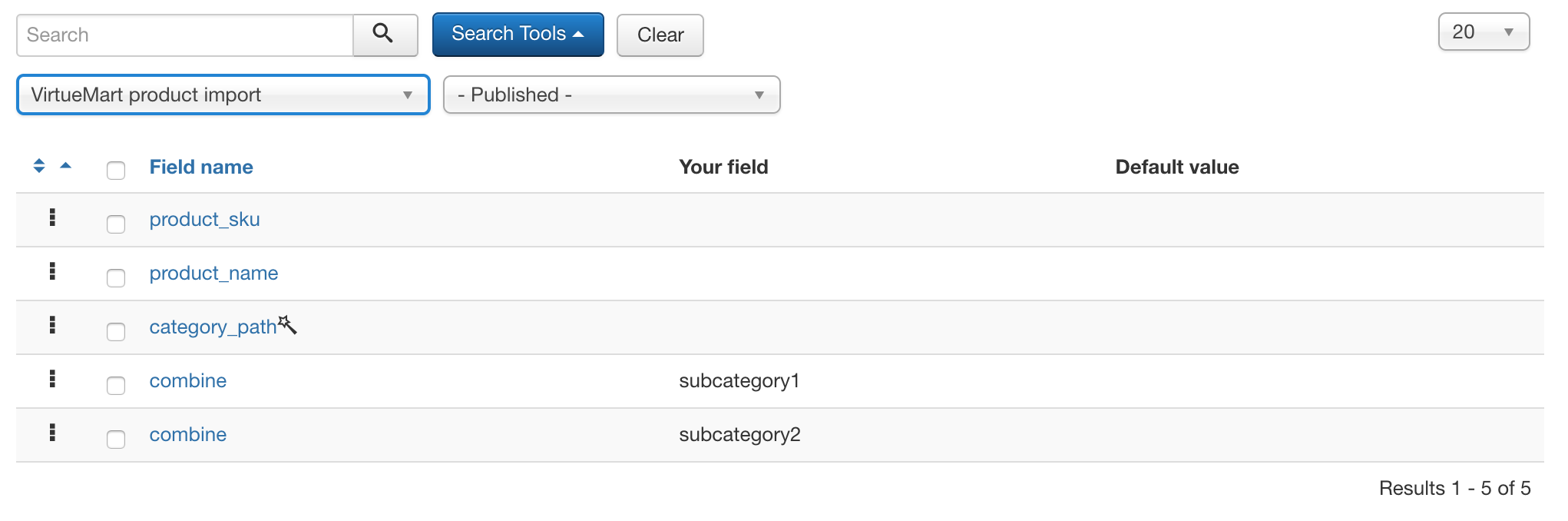
Here is a list of fields of a CSV file where we combine the fourth field. Since the combine is a special field it must have a name in the Your field column.
An example of complete import using a CSV file is shown below
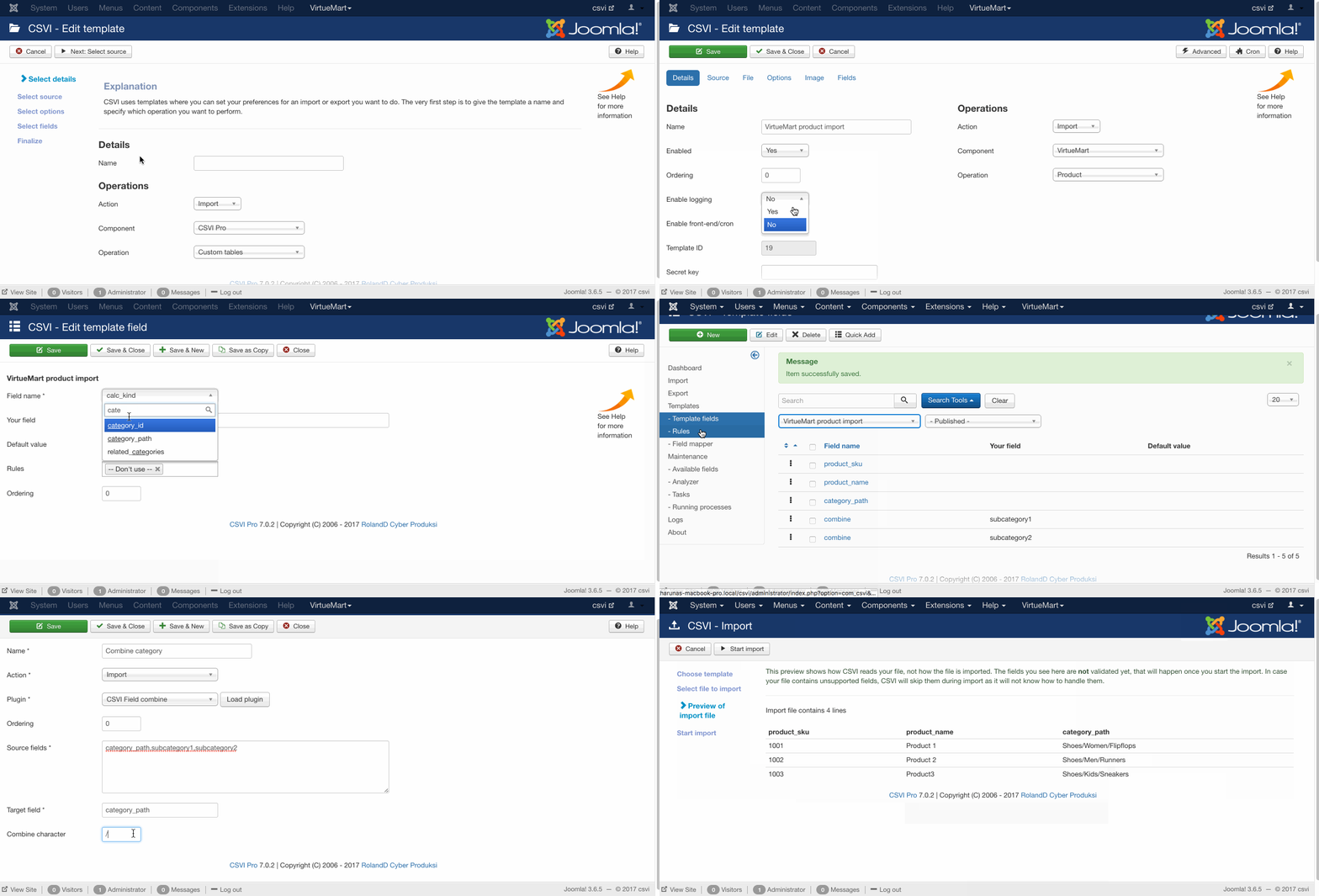
Make sure that Use file for configuration setting in template settings on File tab is set to No so CSVI reads the template fields and not the column headers of the import file.
Combine with XML import file
We have a XML file to be imported with the below structure.
<?xml version="1.0" encoding="UTF-8"?>
<products>
<product>
<code>1001</code>
<titlos>Product 1</titlos>
<category>Shoes</category>
<subcategory1>Women</subcategory1>
<subcategory2>Flipflops</subcategory2>
</product>
<product>
<code>1002</code>
<titlos>Product 2</titlos>
<category>Shoes</category>
<subcategory1>Men</subcategory1>
<subcategory2>Runners</subcategory2>
</product>
<product>
<code>1003</code>
<titlos>Product 3</titlos>
<category>Shoes</category>
<subcategory1>Kids</subcategory1>
<subcategory2>Sneakers</subcategory2>
</product>
</products>
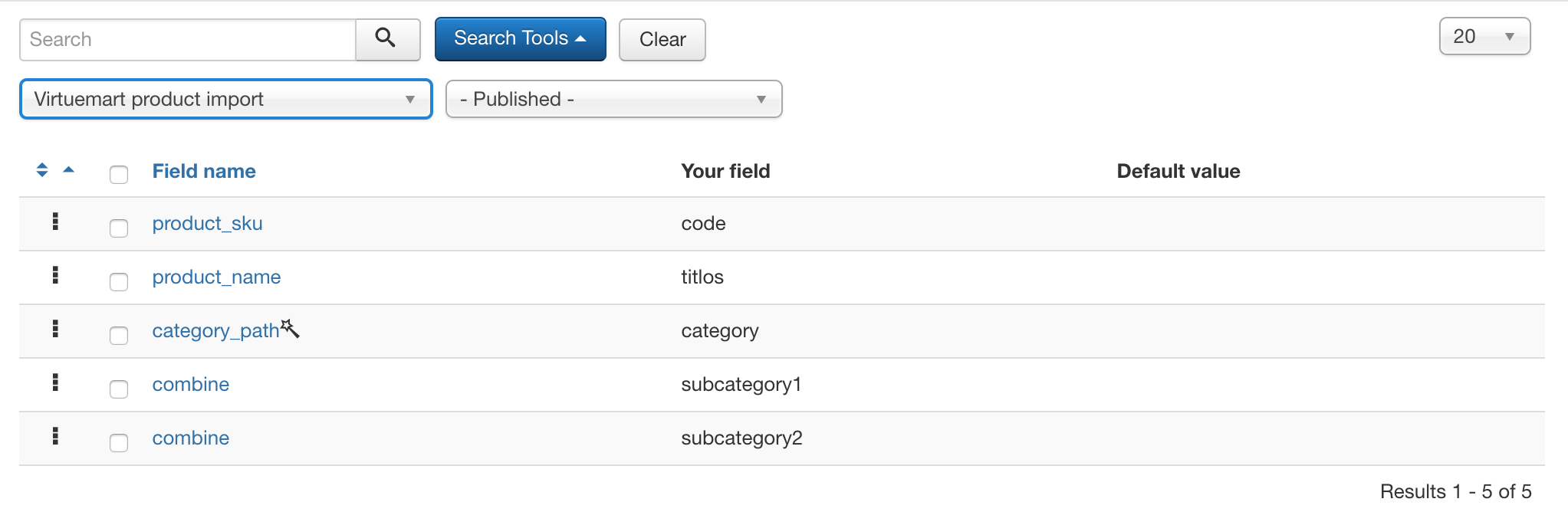
Here is a list of fields of an XML file where we combine the fourth field. XML files require that the Your field is filled with the name in the XML file, all fields here have the Your field filled with the XML path.
An example for complete XML import using combine fields is explained below
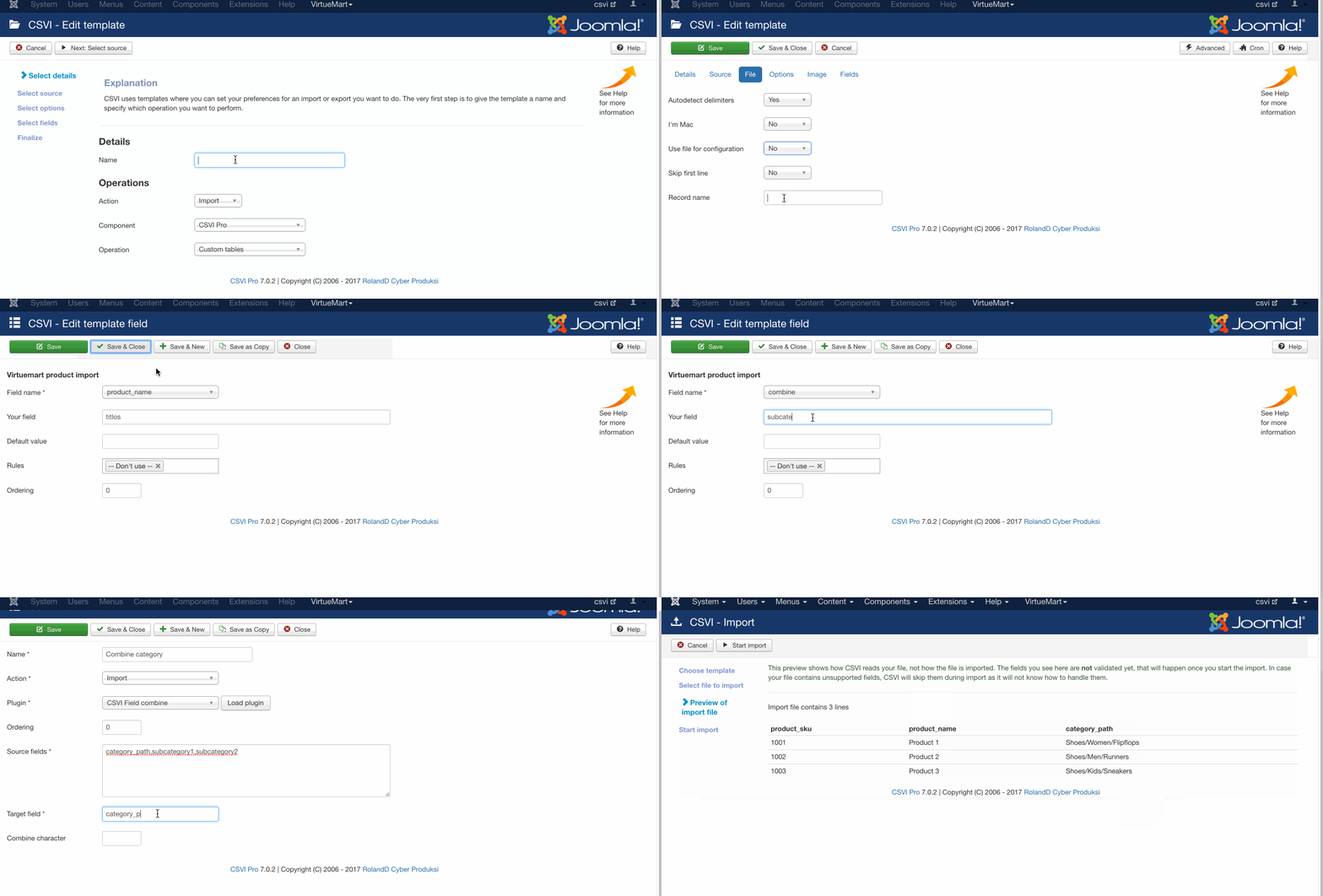
In the combine plugin we set these fields up as shown in the image here:
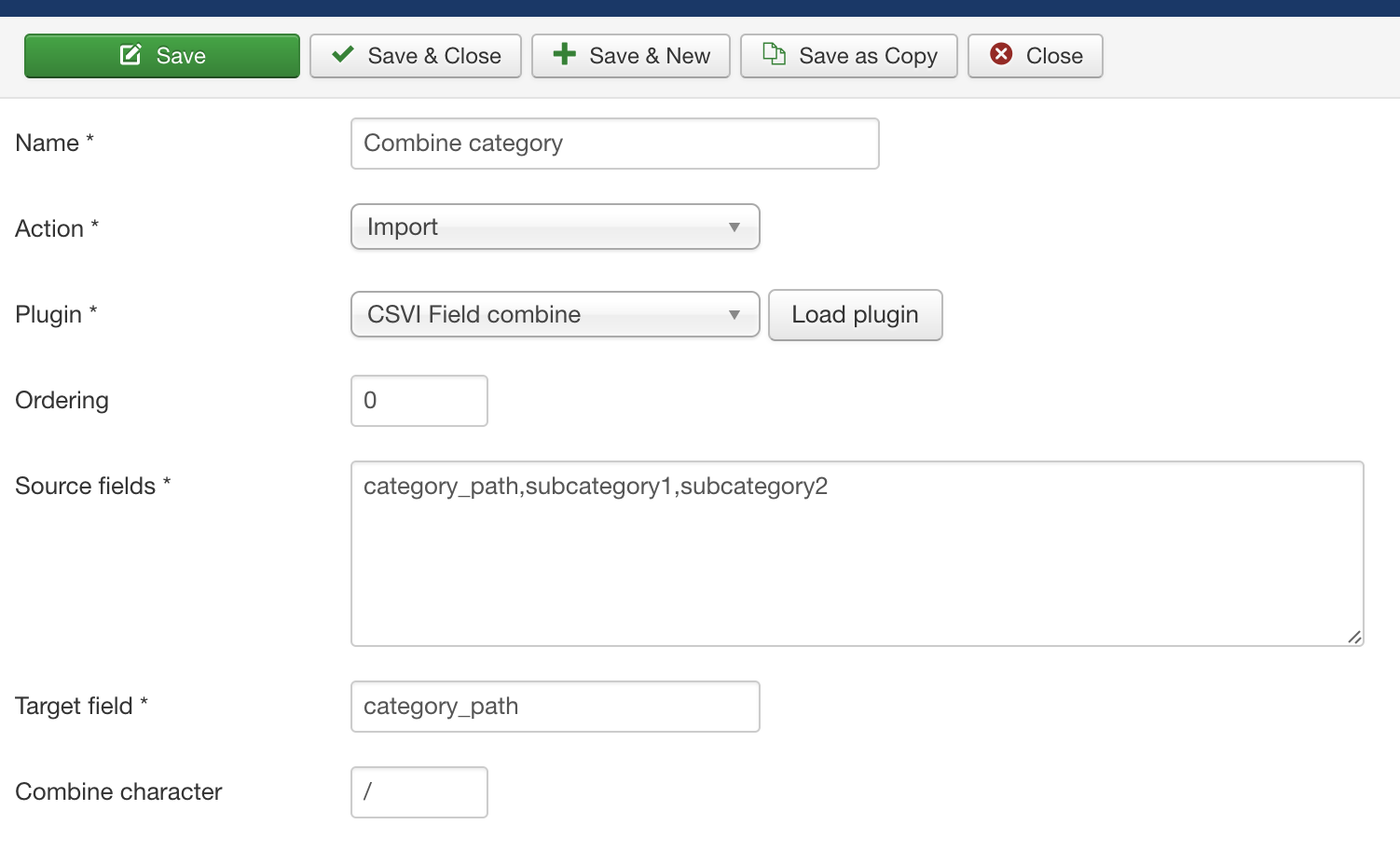
Looking at the Source fields, the category_path is a regular field, so we specify it as category_path. The subcategory field here is the combine field in the template list, as you can have multiple combine fields, CSVI would not know which combine field to use. That is why the Your field must be filled for the combine field. In the Source fields we use the Your field name.
The Target field is in this case the category_path but could also be another field, as long as it is a regular field and the name appears in the Field name column.
Have a look at Combining fields on Import and Export documentation to know more on combine rule plugin.
Conditional rule plugin for import
| RO CSVI
CSVI introduces a new conditional rule plugin so users can now run import and export of field values based on another field and its value. In this article we are going to explain on an example condition for import on VirtueMart order operation.
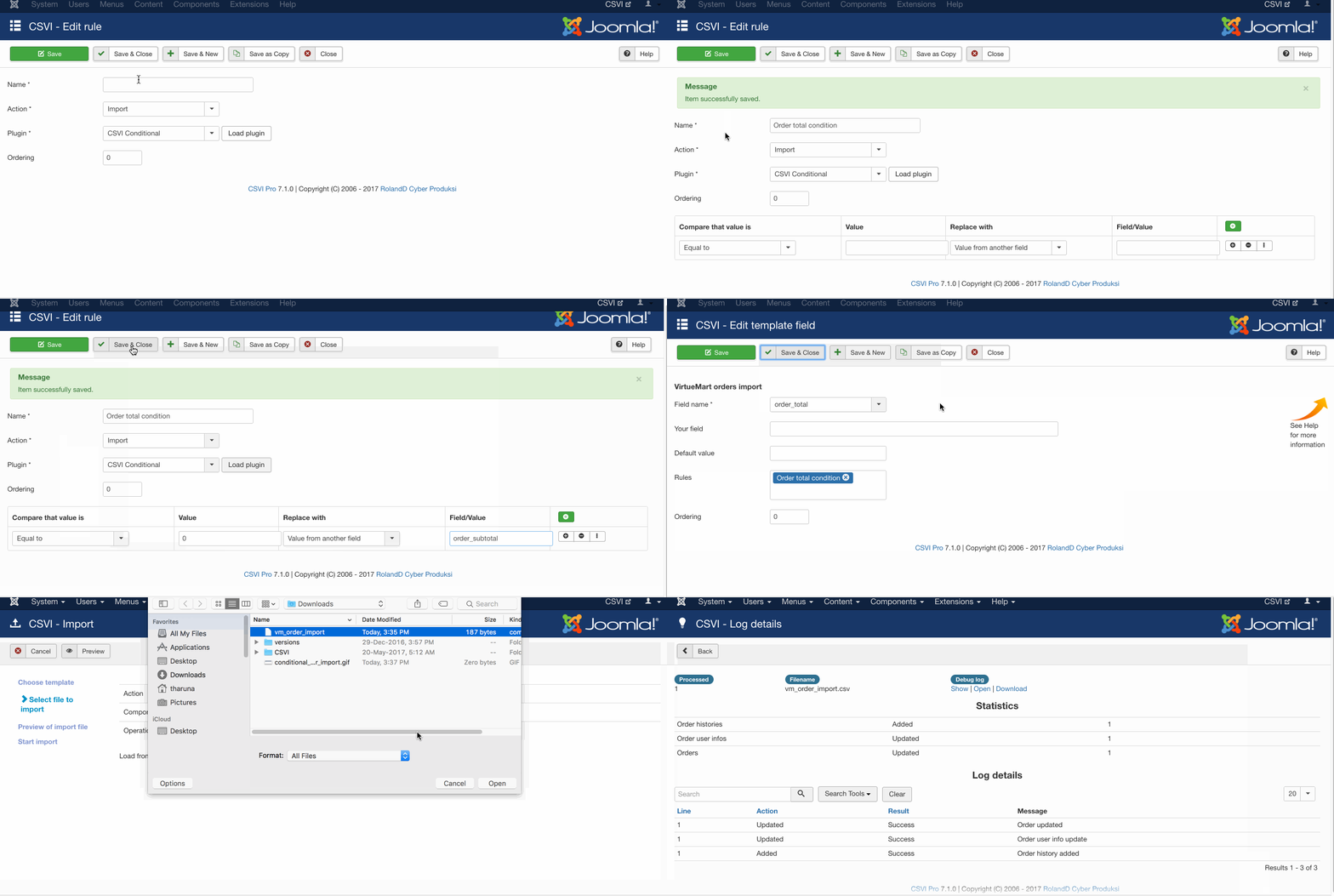
Lets say we are importing orders in VirtueMart and when order_total field is 0 in import file, the value of order_subtotal should be filled for order_total. The procedure is as explained.
We have an example file like

1. Create a order import template in VirtueMart
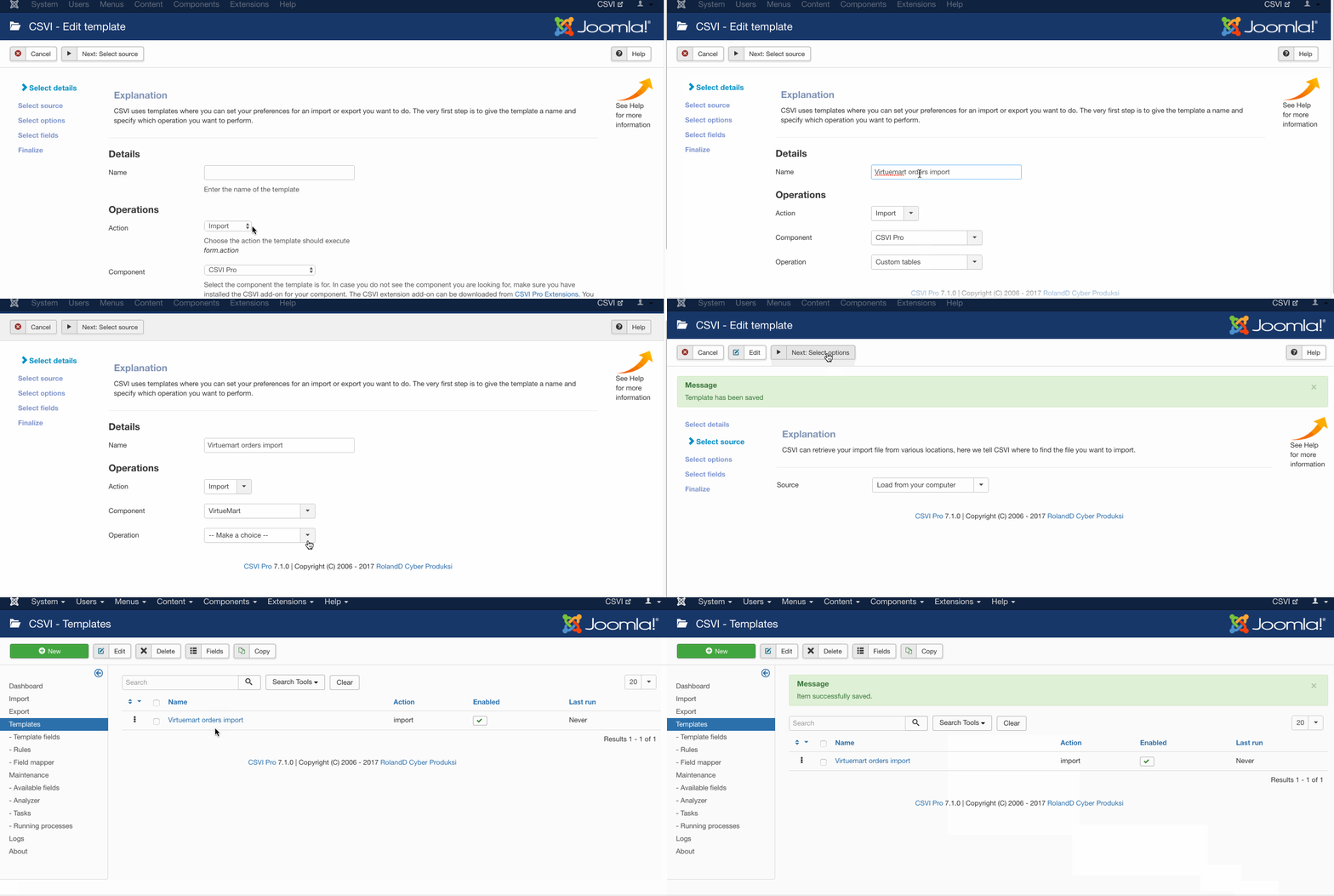
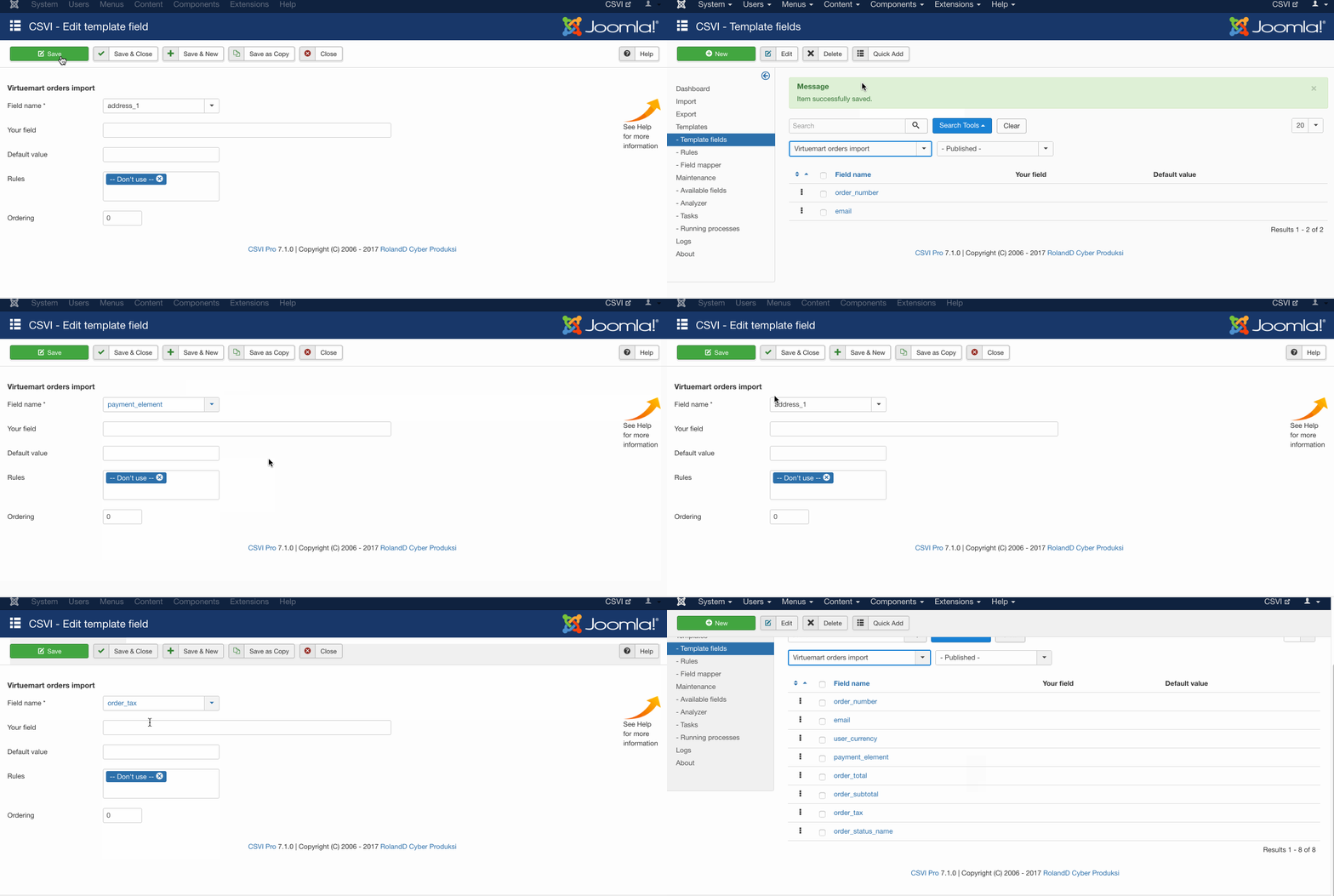
2. Create template fields for the order template.
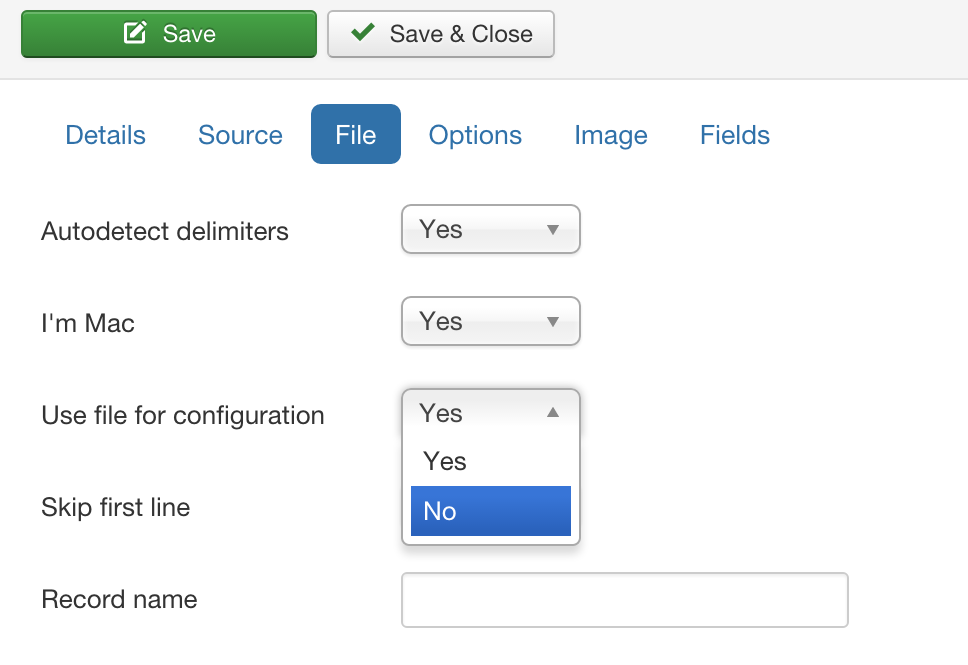
3. Make sure that you set Use file for configuration to No in your template settings and on File tab. This way we tell CSVI to use template fields and not headers of import file.
4. Create conditional rule and set the rule against order_total field. The preview of the import would show the value of order_total field used from order_subtotal field. Check and run the import.
More articles on this subject
I want to import articles with categories
| RO CSVI
Joomla articles are assigned to categories, by default all articles are assigned to Uncategorised category. Learn how to import category for an article using RO CSVI.
Watermark images on import
| RO CSVI
Requirements
- CSVI 6.0+
- Joomla 3.0+
This article will explain on how to set watermark for images during import. This option is available for Virtuemart product/media and Hikashop product imports.
While editing a import template, look for tab name Image in the edit template setting.

At the bottom of the page check for Watermark title. If you dont see this option, make sure that Process image is set to Yes in General options in the same Image tab.
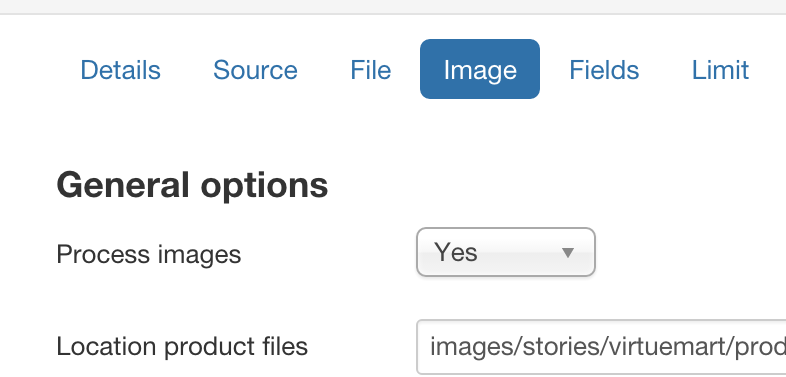
Now setup information needed for watermarking.
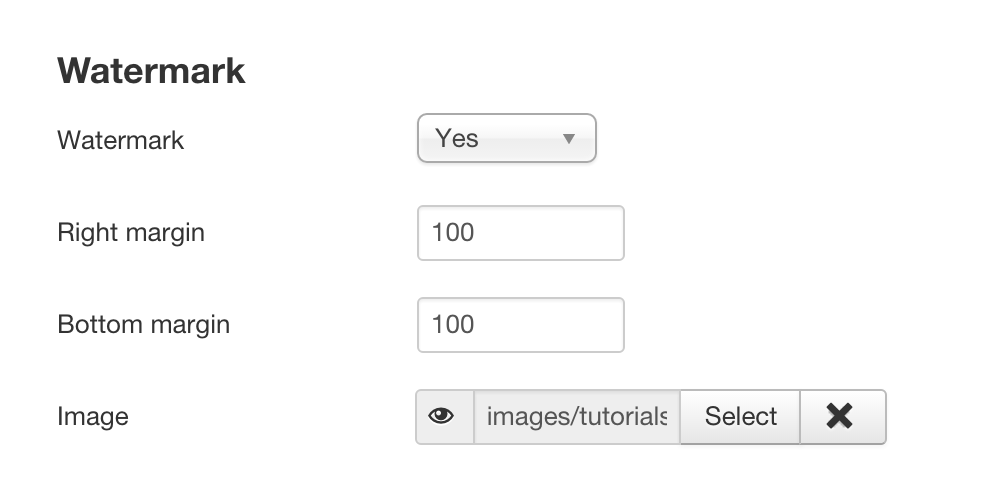
- Set Watermark option to Yes
- Right and bottom margin as required
- Select image used for watermarking
Now save the import template and your watermark settings are saved for the import template.
Run the import and you can see the product and category images has been watermarked in the given path.